

Freshly redesigned and modernized for the latest versions of macOS, SEE Finance 3 for macOS is built for the future along with SEE Finance 3 for iOS. Designed to be intuitive, customizable, and to give users absolute control over their finances including where they keep them. Store your file(s) on iCloud for a seamless syncing experience across all of your Mac and iOS devices. Learn how to upgrade to SEE Finance 3 for macOS when coming from SEE Finance 2 purchased from the Mac App Store below.
SEE Finance 3 Upgrade Instructions:
1. Purchase & Download SEE Finance 3 from the Mac App Store:.
Open the App Store and download SEE Finance 3:
 Note:
If you currently have another version of SEE Finance installed then it will replace the previous version.
If desired, you can keep multiple versions of the program such as for trying out version 3 while still regularly using version 2.
You can create subfolders in your Applications folder for each version of the program such as "SEE Finance Version 2" and "SEE Finance Version 3" and then keep the respective versions in their subfolders while keeping the program named "SEE Finance".
Note:
If you currently have another version of SEE Finance installed then it will replace the previous version.
If desired, you can keep multiple versions of the program such as for trying out version 3 while still regularly using version 2.
You can create subfolders in your Applications folder for each version of the program such as "SEE Finance Version 2" and "SEE Finance Version 3" and then keep the respective versions in their subfolders while keeping the program named "SEE Finance".
2. Open SEE Finance 3.
Select to open the program from the Mac App Store or use Finder to open the program from your Applications folder. When the program opens you will be shown a "Welcome to SEE Finance" window with an option to "Get Started". Select "Get Started".
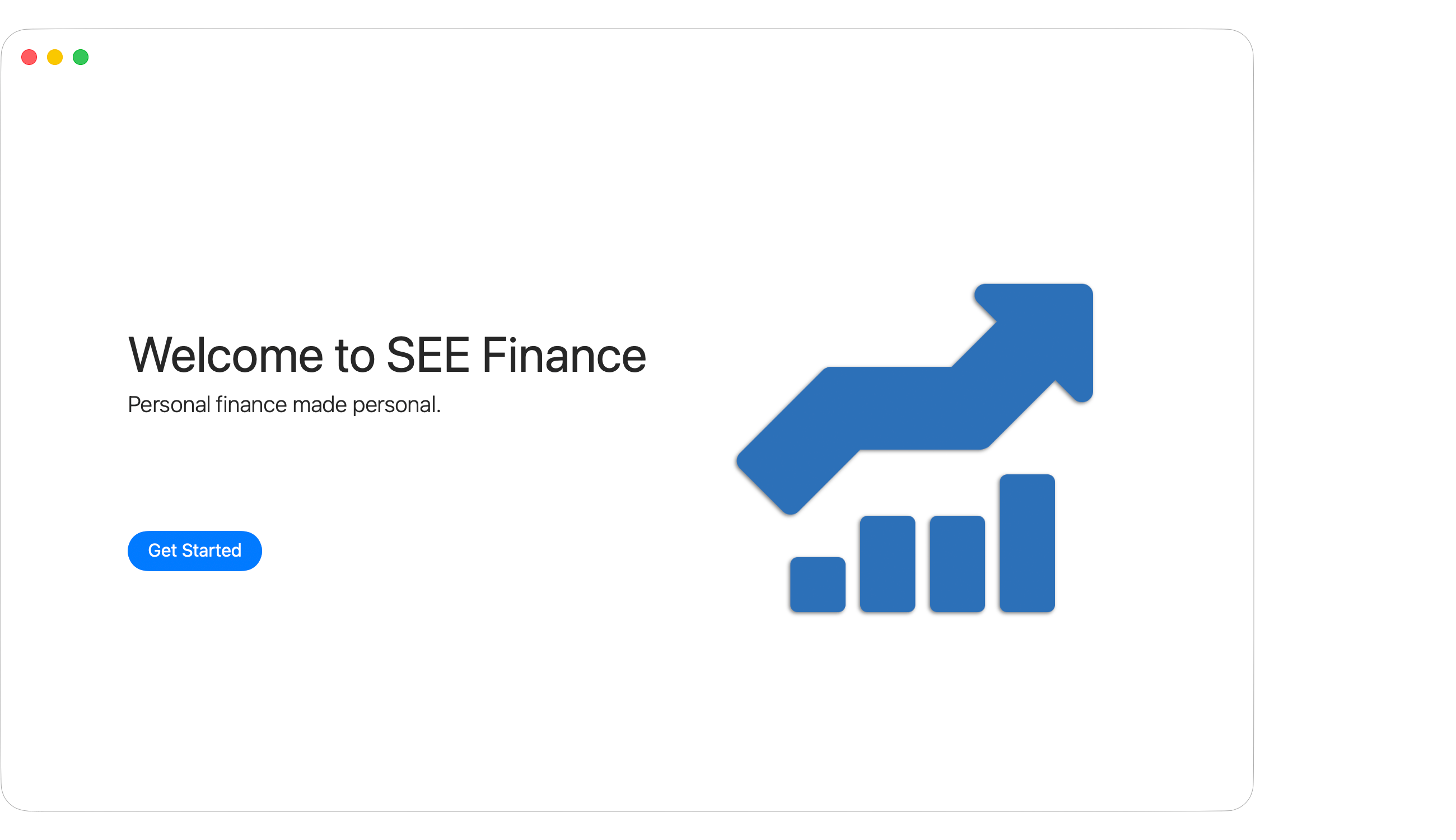
Note:
If you have previously used SEE Finance 3 then you may not be shown a "Welcome to SEE Finance" window. You can select to open a file using the "Open" option in the program's File menu.
 Tip:
Pin the program's Dock icon to the Dock if desired.
To pin a Dock icon, Control-click on the program's Dock icon to be shown a pop-up menu and then in the Options submenu select the "Keep in Dock" option.
Tip:
Pin the program's Dock icon to the Dock if desired.
To pin a Dock icon, Control-click on the program's Dock icon to be shown a pop-up menu and then in the Options submenu select the "Keep in Dock" option.
3. Select to "Open other SEE Finance file".
Select the option to "Open other SEE Finance file" and navigate to and select to open your file from the previous version of SEE Finance.

Note:
On macOS, data files are always stored separately from the program and have a name and location chosen by the user.
If you don't recall where you saved your file(s), try looking for the default file name and in the default location.
The default suggested name for a file is "My Finances" and the default suggested location to store files is in your Documents folder or within the "SEE Finance" folder on iCloud Drive when iCloud is enabled.
You can use Finder to search for your SEE Finance data file(s) if needed.
Open a Finder window and search for ".scsf", without the quotes, which is the file extension for the program's files.
Select the "Kinds" option of "SEE Finance Document" for the search.
Then select the "This Mac" search option to locate all of the SEE Finance files stored on your Mac.
Note:
Files saved with SEE Finance 3 should not be used in older versions of SEE Finance.
SEE Finance 3 Transition Information
• Refreshed:
SEE Finance 3 should feel very familiar yet refreshed as it has been updated to adopt the modern design of recent versions of macOS. Browse the help topics to learn more about the layout and features of the program as needed.
• Customize the program how you like it:
Most everything will transfer when upgrading from SEE Finance 3 with some exceptions. Notably, the backup folder location would be reset to the default location and you can change it to your preferred location to store your automatic file backups for the program. Also, adjust the optional table columns throughout the program to be how you like them such as adding the "Memo" column for transactions. Review the settings for the program to make sure they're how you prefer.
• Tips & tricks:
Be sure to check out the Tips & Tricks page and review the keyboard shortcuts to possibly get even more out of the program then you already do.
• One more thing...
Don't forget about SEE Finance 3 for iOS which works great with SEE Finance 3 for macOS!
Note About the Upcoming Focus of Development:
Adding a new method to download information from institutions is the top priority.
The industry trend has been for institutions to move away from providing downloads directly and instead rely on third party data aggregation services to handle downloads for them.
Many institutions have even stopped providing their customers with financial file formats to download on their websites making the situation even worse.
An option to download using a third party data aggregation service is in development.
Your patience and continued support of the program during this transition is appreciated!