
Freshly redesigned and modernized for the latest versions of macOS, SEE Finance 3 for macOS is built for the future along with SEE Finance 3 for iOS. Designed to be intuitive, customizable, and to give users absolute control over their finances including where they keep them. Store your file(s) on iCloud for a seamless syncing experience across all of your Mac and iOS devices. Learn how to upgrade to SEE Finance 3 for macOS when coming from SEE Finance 1.X acquired directly from us at Scimonoce Software below.
SEE Finance 3 Upgrade Instructions:
1. Download SEE Finance 3.
Download the current version of SEE Finance 3 for macOS from our website:
2. Install in your Applications folder.
Once the program finishes downloading you will need to use Finder to move the program from your Downloads folder, or custom download location, to your Applications folder or to a subfolder within your Applications folder. Prior to doing so you may need to "unzip" the program if it was not unzipped automatically. If you currently have another version of SEE Finance installed then you will be prompted to replace that version.
If desired, you can keep multiple versions of the program such as for trying out version 3 while still regularly using version 1. You can create subfolders in your Applications folder for each version of the program such as "SEE Finance Version 1" and "SEE Finance Version 3" and then keep the respective versions in their subfolders while keeping the program named "SEE Finance". You can also download previous versions of the program from our Older Versions Page.
3. Open SEE Finance 3.
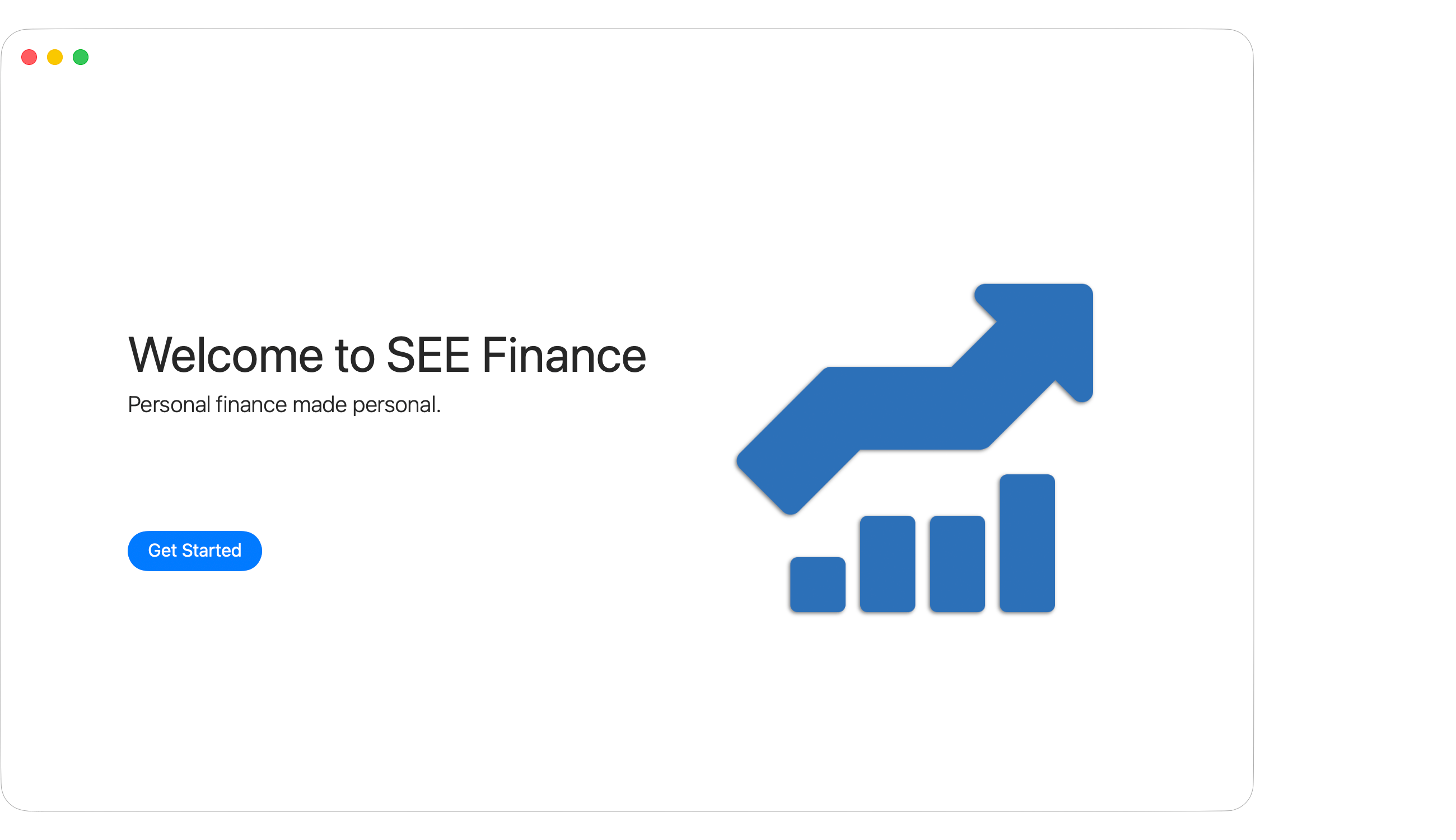
Use Finder to open the program from your Applications folder. When opening any program that was downloaded outside of the Mac App Store you will be prompted to verify that you are sure you want to open it. Accept to "Open" the program. When the program opens you will first need to review and agree to the license agreement. Then you can enter your version 3 registration information or select to "Use Trial". Following the license agreement and registration prompts, you will be shown a "Welcome to SEE Finance" window with an option to "Get Started". Select "Get Started".
 Note:
If you have previously used SEE Finance 3 then you may not be shown a "Welcome to SEE Finance" window. You can select to open a file using the "Open" option in the program's File menu.
Note:
If you have previously used SEE Finance 3 then you may not be shown a "Welcome to SEE Finance" window. You can select to open a file using the "Open" option in the program's File menu.
 Tip:
Pin the program's Dock icon to the Dock if desired.
To pin a Dock icon, Control-click on the program's Dock icon to be shown a pop-up menu and then in the Options submenu select the "Keep in Dock" option.
Tip:
Pin the program's Dock icon to the Dock if desired.
To pin a Dock icon, Control-click on the program's Dock icon to be shown a pop-up menu and then in the Options submenu select the "Keep in Dock" option.
4. Select to "Open other SEE Finance file".
Select the option to "Open other SEE Finance file" and navigate to and select to open your file from the previous version of SEE Finance.

Note:
On macOS, data files are always stored separately from the program and have a name and location chosen by the user.
If you don't recall where you saved your file(s), try looking for the default file name and in the default location.
The default suggested name for a file is "My Finances" and the default suggested location to store files is in your Documents folder or within the "SEE Finance" folder on iCloud Drive when iCloud is enabled.
You can use Finder to search for your SEE Finance data file(s) if needed.
Open a Finder window and search for ".scsf", without the quotes, which is the file extension for the program's files.
Select the "Kinds" option of "SEE Finance Document" for the search.
Then select the "This Mac" search option to locate all of the SEE Finance files stored on your Mac.
5. Convert your data to SEE Finance 3.
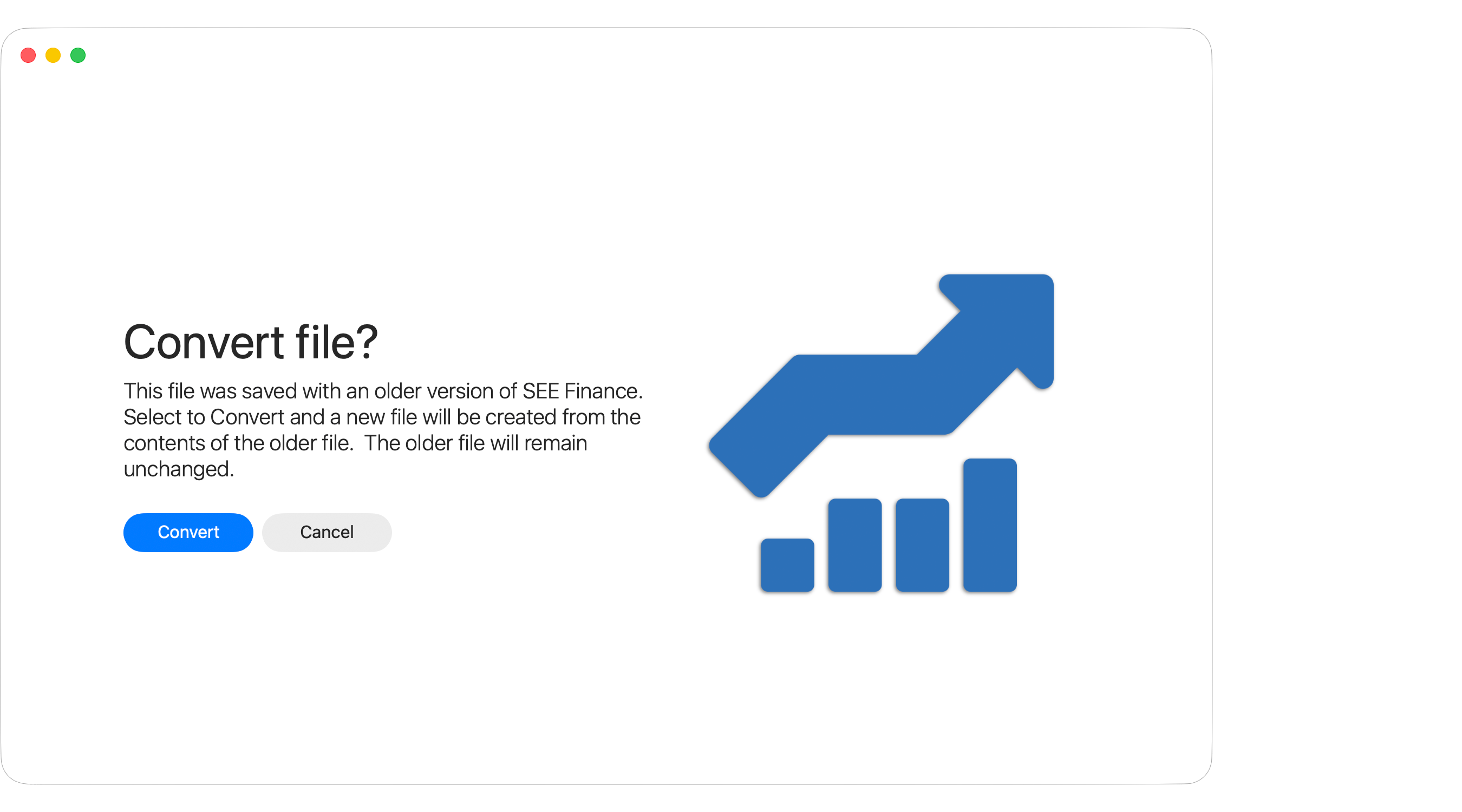
You will then be shown a new "Convert file?" window with the option to "Covert" the file that you selected to open. Select the "Convert" option and the program will proceed to gather the data contained in your file from the previous version to create an entirely new file for the program. This will not delete or edit your file from the previous version. It will simply import the data into a new file.
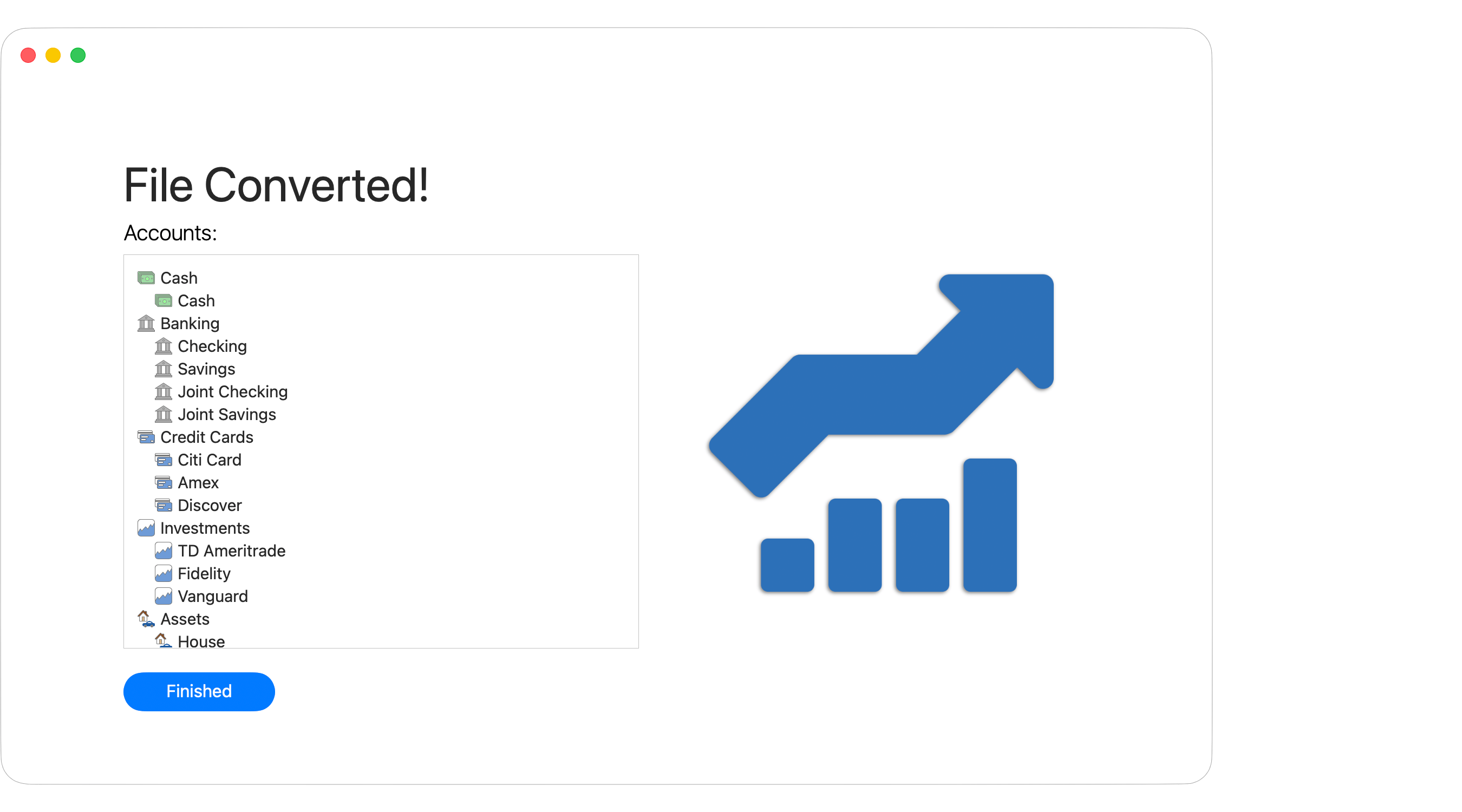
After the import is complete you will be shown a summary of imported accounts and you can select "Finished" to begin using SEE Finance.
6. Save your new file for SEE Finance 3.
Finally, save your new file for the program in the location of your choice. You can select to store your file on iCloud Drive to access it from any of your Mac or iOS devices.
Note:
It is up to you if you want to keep or delete your file(s) from the previous version of the program.
We recommend that you keep them for backup purposes.
Note:
Files for SEE Finance 3 cannot be used in older versions of SEE Finance.
SEE Finance 3 Transition Information
• Familiar, but different:
SEE Finance 3 should feel very familiar yet different at the same time. The content navigation is the same where you select items from the main left account list on the left to control the content shown on the right. The new program uses inline editing where you edit information directly in the tables as opposed to older versions using form based editing where you'd select a row in a table and edit the selected item's information in a form next to the table. With inline editing you may need to adjust the optional table columns in order to view and edit values such as the memos or check numbers for transactions. Browse the help topics when you have a chance to learn more about the layout and features of the new program. Be sure to check out the Tips & Tricks page and review the keyboard shortcuts as some have changed.
• Not everything will transfer:
Essentially only your accounts, transactions, payees, categories, scheduled transactions, securities and attachments will transfer to the new version. Items such as download connections, reports and budgets will need to be re-created as they're structurally different in the new program. You will also need to adjust the optional table columns and program settings as desired.
• Pros & cons:
There are pros and cons to SEE Finance 3 being a completely new program. There are many, many new improvements in the new version compared to the previous version, but there is also not yet complete feature parity between the new and previous version. We expect that most users will find their needs met by the new program, but users that rely heavily on Transaction Filters or that need to track loan amortization schedules may want to hold off until those features are added. Keep in mind that this is an all new foundation to build on and we hope you will choose to support us by purchasing. Feel free to try out the new program to make sure it meets your needs before purchasing.
• Notable features not yet available in SEE Finance 3:
- Memorized Transactions. Added in version 2.1.
- A separate in-depth reconciling mode. Added in version 2.1.
- Automatic file backups. Added in version 2.1.
- Transaction Filters.
- Loan amortization schedules.
- Built-in web browsers for downloading files from institution websites.
All of these features, and more, are planned additions for the new program in future updates.
• Notable new features available in SEE Finance 3:
- Inline transaction entry.
- Automatic creation and updating of transfer transactions.
- Tags for transactions.
- A "Transactions" section for accessing all transactions from all accounts.
- Calendar View for viewing and recording transactions.
- Redesigned reconciling mode for reconciling of accounts.
- Improved investment transaction entry and tracking.
- New Overview section with multiple graphing options.
- Improved reporting including several new reports and options.
- Improved budgeting.
- Redesigned scheduled transactions along with a new "Pending" transactions option.
- Many other items that make the program much more intuitive and easier to use.
• Plus one more thing...
- The all new SEE Finance 3 for iOS that syncs along with SEE Finance 3 for macOS.
Note About the Upcoming Focus of Development:
Adding a new method to download information from institutions is the top priority.
The industry trend has been for institutions to move away from providing downloads directly and instead rely on third party data aggregation services to handle downloads for them.
Many institutions have even stopped providing their customers with financial file formats to download on their websites making the situation even worse.
An option to download using a third party data aggregation service is in development.
Your patience and continued support of the program during this transition is appreciated!